Security

Old Content

This content is old! It’s still useful, but it’s old, and there may be bit rot, newer/better tools or ways to do things. Sanity check and do your research.
Information Security Portals & Resource Centers

Portals

Resource Centers

  • SANS – System Administration, Networking, and Security Institute
  • CERT – The CMU Computer Emergency Response Team
  • FIRST – Forum of Incident Response and Security Teams
  • CERIAS – Center for Education and Research in Information Assurance and Security (was COAST)
  • NIST - CSRC – National Institute of Standards and Technology Computer Security Resource Clearinghouse
  • CISecurity – The Center for Internet Security Security

Trade Publications


Information Security Books

There are an awful lot of security books out there. This list covers only books that I own and have read and found useful. Some may have newer editions than are listed here, so look for those too. I highly recommend all of them, but if you only read a few, read the first three. Also, see the links above for various trade magazines and web sites.

Also, Information Security Magazine (for which I am a Technical Editor) has an excellent piece on starting a career in Information Security called " Breaking into InfoSec." It has many more references than below, including degree programs in InfoSec, and books (some of which are on my list too).

Introduction

  • Secrets and Lies, by Bruce Schneier, from Wiley [ISBN 0-471-25311-1]. Excellent read – accessible and very interesting. Mostly non-technical, from a business perspective. A must read for any executive or risk manager from a company that uses the Internet (and who doesn’t). Also very valuable for technical people, to get more of a sense of the business side of things. Quite entertaining.
  • Computer Security Basics, Deborah Russell and G.T. Gangemi Sr, from O’Reilly [ISBN 0-937175-71-4]. One of the seminal introductory works on the subject, but there is a lot of material for the experienced InfoSec person as well.
  • Hacking Exposed, N’th Edition, by Joel Scambray, Stuart McClure and George Kurtz, from Osborne McGraw-Hill. A very interesting and scary read, this details innumerable exploits or hacks, and how to protect against them. A must for any system or network administrator. (Note I have the 1st and 2nd editions, but who knows what it’s up to now.)
  • Building Internet Firewalls, Second Edition, by Elizabeth D. Zwicky, Simon Cooper and D. Brent Chapman, from O’Reilly [ISBN 1-56592-871-7]. The updated version of the classic and seminal work, and a must for any firewall administrator.
  • The NCSA Guide to Enterprise Security: Protecting Information Assets, by Michel E. Kabay, Ph.D. from McGraw-Hill [ISBN 0-07-033147-2]. This one reads more like a text-book that the others above. It has a lot to offer, especially references to other literature and products, though they are getting quite dated.
  • White Hat Security Arsenal: Tackling the Threats, by Aviel D. Rubin, from Addison-Wesley [ISBN 0201711141]. This is different than most security books in that it tries to be more practical, presenting “case studies” and solutions to every day needs. It’s a good read.
  • Know your Enemy, by The HoneyNet Project [ISBN 0-201-74613-1] is a really cool book that talks about how the HoneyNet Project is researching hacking tools and techniques. See also the “ Know Your Enemy” white papers from Lance Spitzner and the Honeypots: Tracking Hackers site.

Intermediate

  • Handbook of Information Security Management 1999, edited by Micki Krause and Harold F. Tipton, from Auerbach [0-8493-9974-2]. This is a typical “handbook” with ten chapters very roughly following the ISC² ten CBK (Common Body of Knowledge) domains. Each chapter is written by a recognized expert in the field, so they all have a different style and perspective.
  • Computer Security Handbook: Third Edition, edited by Arthur E. Hutt, Seymour Bosworth and Douglas B. Hoyt, from Wiley [ISBN 0-471-11854-0]. There is a 1997 supplement to my edition of this as well. This is a very dense and difficult read. I use it more for lookups and reference than cover-to-cover. There is a lot of material to covered!
  • Essential Check Point Firewall-1(TM): An Installation, Configuration, and Troubleshooting Guide, by Dameon D. Welch-Abernathy (AKA Phoneboy), from Addison-Wesley [ISBN 0201699508]. There is also Essential Check Point FireWall-1 NG in the works, probably available in early 2004.
  • Intrusion Detection, by Rebecca (Becky) Gurley Bace from MacMillan Technical Press [ISBN 1-57870-185-6]. This book should be required reading for anyone who even thinks about Intrusion Detection Systems (IDS). I thought I knew quite a bit about IDS until I read this book.

Advanced

  • Securing Windows NT/2000 Servers for the Internet, by Stefan Norberg, from O’Reilly [ISBN 1-56592-768-0]. Excellent book on hardening NT/2000. Does not cover details of IIS that much, but really focuses on the OS. Under 200 pages, very readable, and it assumes you already know quite a lot about InfoSec and Windows. Has the best description of the totally counter-intuitive way Windows “TCP/IP Security” works (and I use the last term loosely). Also has excellent info on why IIS is such an amazing security risk.
  • Network Intrusion Detection: An Analyst’s Handbook, N’th Edition, by Stephen Northcutt and Judy Novak, from New Riders. A very dense and technical book, with really great material about decoding various network traces (a lot of focus on tcpdump and similar tools).

I suggest looking for these books on Bookpool, as they have far cheaper prices than Amazon or Barnes and Nobel. Fatbrain is also good.

Finally, Sabernet has a large collection of links for security books, papers, links and tools, but I take no responsibility for their quality.


Information Security Training

I have only attended CSI and ISC² classes. I hope to attend some SANS and MISTI classes soon.

  • CSI – The Computer Security Institute. Holds a yearly seminar and exposition, with various classes that “travel” around the country. Usually focused more on concepts, and less on specific products and/or technology.
  • SANS – System Administration, Networking, and Security Institute. Holds a yearly seminar and exposition, with various classes that “travel” around the country. Focused more on specific products and/or technologies than CSI.
  • MISTI – MIS Training Institute. A little of everything.
  • Information Security Magazine, October 1, 2001, “ Pay Your Dues.”
  • The Honeynet Project, " How do I get started in the Security Field?"
  • Also see below information about ISC² and the CISSP certification.

What is a CISSP

A brochure I received from the International Information Systems Security Certifications Consortium or ISC² defined the CISSP (Certified Information Systems Security Professional) designation as follows :

“The CISSP certification is an independent and objective measurement of professional expertise and knowledge within the information security profession.”

I would further add that it denotes an individual who has the following qualifications:

  1. Three or more years of direct professional experience in one or more areas of Information Security.
  2. Has read, understood and agreed to abide by the ISC² code of ethics
  3. Demonstrated a comprehensive understanding of the common body of knowledge of the Information Security field. This body of knowledge is divided into ten domains or areas, and understanding of the material is demonstrated by a rigorous test administered once a quarter all over the world.
  4. Demonstrates a commitment to stay up-to-date in the field by earning 120 Continuing Professional Education (CPE) credits every three years.
  5. Was one of a group of only 4,000 individuals world-wide by end of 2000. (See below for details, but the number of CISSPs has skyrocketed since I wrote this.)

According to an e-mail message I received from James E. Duffy, CISSP (ISC² VP) on 9/12/2000, “there are approximately 3000 CISSPs. The number is up from just under 2000 at the end of 1999. Based on the number of exams scheduled for the rest of the year, on 12/31/00 we will be very close to the 4000 number. This will mark the 3rd consecutive year that we have doubled our base.” And according to SECURITY WIRE DIGEST, VOL. 4, NO.74, OCTOBER 3, 2002, “The ISC² Monday honored its 10,000th Certified Information Systems Security Professional (CISSP)… According to ISC², the number of CISSPs, one of the security industry’s most coveted certifications, has grown from 2,000 in 1999 and is expected to hit 15,000 by the end of the year [2002].”

Formed in mid-1989, the International Information Systems Security Certification Consortium or ISC² was established as a nonprofit corporation to develop a certification program for information systems security practitioners. There is a 10 day review class that helps you understand what material will be covered on the exam. Note this is simply an outline of the material to be covered – it does not teach the material! It is well worth it, just for the discussions with the other students and instructors. The class materials are also helpful.

Here is some other information as well:

Old Content

This content is old! It’s still useful, but it’s old, and there may be bit rot, newer/better tools or ways to do things. Sanity check and do your research.

Subsections of Security

Firewall Rule Base Best Practices

Old Content

This content is old! It’s still useful, but it’s old, and there may be bit rot, newer/better tools or ways to do things. Sanity check and do your research.

This is the companion page for my Firewall Rule Base Best Practices document.  I have listed all the resources I would otherwise have put at the bottom of the document.  In this way, I hope to keep them current, and to add new material when I find it without having to revise the original document.  If I have written it correctly, it should need little revision as time passes and technology changes.  We’ll see.

Update 2003-01-27

When I started this document in the late 1990s, I was an InfoSec consultant working with firewalls on a day-to-day basis. That is not my day job anymore, and I have not found a great deal of time to devote to it. In addition I have since moved on, and I do not work with firewalls much in my current role.

I have been surprised at the number of requests that I get for this draft, and I apologize to all those who I’ve kept waiting though my lack of time. Thus, I am making this draft directly available on the Internet in the hope that it will be useful. I disclaim any and all liability-use it at your own risk.

If you would like to take over the maintenance of this document, let me know at JPATjpsdomainDOTorg .


Best Practices


Resources

See also my Security Tools page.

Old Content

This content is old! It’s still useful, but it’s old, and there may be bit rot, newer/better tools or ways to do things. Sanity check and do your research.

GNATBox Firewall Installation Quick Reference

Obsolete Content

This content is obsolete, but I am leaving it here as a historical reference.

Introduction

This is a quick reference guide for installing the free GNATBox Light firewall. GNATBox Light is a complete hardened, stateful, BSD-based firewall that fits on a single floppy disk (how cool is that?). See below for references. You can download a Word document with some sample Avery 5196 diskette labels at http://www.jpsdomain.org/public/ /GNATBox_Diskette_Labels.doc. Also check out my Home Networking diagram and explanation at http://www.jpsdomain.org/infosec/home_networks.html.

If you are interested in firewalls, you should also check out http://m0n0.ch/wall/ a completely free and Open Source firewall platform. It is arguably better than the GNATBox in many ways, such as having a more standard (in firewall terminology) and intuitive interface, many more features, no arbitrary limits on the number of interfaces or the number of connections, etc. However, it requires more resources to run (Pentium or better, 64 MB RAM or better, and a hard drive, CD-ROM or CF-Card. Both M0n0wall and GNATBox are very cool, and both have their place, so check them both out.

What’s Needed

  • 486 or better with 32 MB RAM [I’m only using 20 MB] and a floppy drive (no hard drive)
    • 2 NICs (3Com 3c509b recommended for 486/ISA)
    • You will need a keyboard and monitor for the install only

Work Sheet

* External IP Address: + External MAC Address:
* External subnet mask: * Default Gateway
ISP DNS 1: ISP DNS 2:
Internal (PROtected) IP Address: + Internal MAC Address:
Internal subnet mask:

* If you have a cable modem, PPPoE or other link that uses DHCP, you will not need these. + It is very helpful, but not required to know the MAC addresses of the network cards. It’s often written somewhere on the card, especially 3Com cards.

Basic Instructions (circa October 2002, updated 2006-03-06)

  1. Read the about GNATBox Light (a little obsolete) at: http://www.gta.com/news/release/?n=1998-04-07.html

  2. Download the installer and the documentation from http://www.gta.com/products/gblight/ and http://www.gta.com/support/documents/. There is also a FAQ at http://www.gta.com/support2/faq/, though only the “General Questions” section has much bearing on the GNATBox Lite.

  3. Install the software on the machine from which you will do management. At the end of the first part of the install, you may want to unselect items you don’t need, e.g., “Make GNATBox Light PPP floppy.” Then there will be a few more simple install wizards and you’re finished.

  4. Format and write a GNATBox floppy disk. (Using GBAdmin or gbMakeFloppy you can “merge” an existing configuration into the new image when you need to upgrade to a new version. See below.

  5. Set the BIOS to boot without a keyboard if possible on the firewall box and boot the install floppy.

  6. On the firewall box itself, follow the GNATBox setup wizard to configure the firewall.

    1. Set the host name.
    2. Enter the external and internal IP addresses and subnet masks as needed. If you have a cable modem, use DHCP on the external address.
    3. Hit the space bar to select a different interface for the PROtected interface (it defaults to the one you probably already used for the external interface).
    4. Hit the space bar to skip setting up a private service network (PSN/DMZ). This is not available in the free version (neither is VPN).
    5. Set the default route (next hop) if necessary.
      • On older versions, do not set it if using DHCP externally.
      • On newer versions, set it to the Interface object of the connection (e.g. <EXTERNAL>).
    6. Set the password for the administration account.
    7. Save the configuration when finished.
    8. When the firewall finishes loading, try ALT-F1, ALT-F2, and ALT-F3:
      • Screen 1: log messages
      • Screen 2: console admin tool
      • Screen 3: network stats
  7. Next, connect to the firewall from the management machine. Launch GBAdmin → File → Open → Network → enter the firewall’s IP. Default admin user: gnatbox. Password: whatever you set earlier.

    1. While there is a web GUI, the fat client is usually easier. You can also disable the web GUI entirely to reduce attack surface.
  8. Register your GNATBox Light (recommended; free). This lifts some restrictions. I’ve never received spam traceable to GTA. It is essential that you enter the correct MAC address of the PROtected interface. Locate it in Network Information under Physical Interfaces. Example format: 08:00:2b:9a:94:3a. You can also find it under “Reports → Configuration” and safely copy/paste it.

    1. Go to http://www.gta.com/products/regGblight/ and fill out the form.
    2. Enter the PROtected MAC address. You will see the registration code immediately and also via email.
    3. Go to “Basic Configuration → Features”.
    4. Add the registration code (green plus on toolbar or Edit → Insert). The description will stay “?????” until you exit and re-enter the admin interface.
    5. Go to “Basic Configuration → Preferences”.
    6. Paste the serial number and complete remaining fields.
  9. Explore the interface. Each main heading has a summary/help page. Pay special attention to Reports and System Activity.

  10. Review the configuration:

    1. Basic Configuration → DNS: configure as needed.
    2. Basic Configuration → Features: only the activation code matters.
    3. Basic Configuration → Preferences: enter name, email, serial number, support email.
    4. Services → E-Mail Proxy: configure if mail is delivered to an internal server.
    5. Services → Remote Logging: see “Remote Logging”.
    6. Authorization → Admin Accounts: manage admin users/passwords.
    7. Authorization → Remote Admin/Authentication: A web server on port 80 is enabled by default. I usually disable this, as it is not SSL (free version) and only accessible internally.
    8. Authorization → VPNs: not available in the free version.
    9. Content Filtering: proxies and filtering (e.g., CyberPatrol), HTTP proxy (traditional or transparent).
    10. Routing: configure RIP/static routes if needed.
    11. Objects → Addresses: define objects for use in rules.
    12. Objects → VPN: usually disable (VPN not available in free edition).
    13. Filters → Outbound: verify outgoing rules. Default allow‑all may be too permissive.
    14. Filters → Preferences → Email Server: Configure SMTP alerts; otherwise disable the alarm on rule 17.
    15. Filters → Protocols: defines protocols; typically unchanged.
    16. Filters → Remote Access (incoming rules): Carefully verify what is allowed inbound.
    17. Disable rule 4 (unrestricted in/out DNS).
    18. Rule 7 blocks junk (e.g., UPnP discovery).
    19. Disable rule 13 or set to deny (Ident/auth protocol—obsolete).
    20. Consider rule 14 (ICMP to the firewall).
    21. Rule 17 = cleanup rule: deny & log everything not previously allowed.
    22. Filters → Time Groups: define time-based rule groups.
    23. IP Passthrough: bypass NAT—rarely appropriate.
    24. NAT: configure NAT behavior.
    25. NAT → Inbound Tunnels: PAT/port‑forwarding. Useful but dangerous.
    26. Runtime → Version: shows runtime image version.
    27. Reports → Verification: resolve configuration issues.
    28. Reports → Hardware: details about the firewall hardware.
    29. Reports → Configuration: copy/paste a readable config backup.
    30. System Activity: operational metrics.
    31. Links: various helpful URLs.
  11. Save the configuration to the floppy.

  12. You now have a basic firewall set up.

Hints

  • You can save and open GNATBox configurations from the network (to the firewall itself), any number of floppies, and files on the local hard drive. Since the entire firewall system resides on a single floppy, this makes the back-out plan when upgrading absurdly simple–put the old floppy back in and reboot. Likewise, in a test lab, you can have any canned firewall config you want just by using a different floppy.
  • Backup the system by creating a backup floppy. This is also great for testing! Open the existing configuration from the local drive, then switch floppies and save both “Configuration” and “Runtime.” Or, you can open a firewall over the network, save the config as a file, then merge it to a new floppy as below.
  • Merge</span an old config into a new GNATBox runtime with GBAdmin:
    1. Run the GUI admin tool.
    2. Open the firewall over the network, or the firewall floppy.
    3. Choose the File, Merge menu.
    4. Load the old config file or floppy.
    5. Verify the configuration, then save the merged config.
  • “Merge” an old config into a new GNATBox runtime with gbMakeFloppy.
    1. Run “Make GB Lite Floppy”
    2. Click the control menu (icon in the title bar, in the upper left, directly left of the text “GNATBox Make Floppy”) and chose the appropriate option.
  • See the GNATBox Forums at http://forum.gnatbox.com/.

Remote Logging

OK, one very important thing we have not talked about is logging. Since the GNATBox uses a single floppy disk, it has no room for local logging. It can log to memory, but that usually runs out pretty fast too. So a remote loghost is great. If you already have a syslog sever (all UNIXs have one) you can use that (see the resources section for syslog server configuration). If not, GNATBox Lite used to come with one for Windows, but that seem not to be the case any more. See Windows Syslog Servers below for solutions.

  1. In Services, Remote Logging: Enable logging.
  2. Enter the IP address and port (514) of your syslog server. The defaults are not bad, so I’d start with them.
  3. If you are using a UNIX syslog and understand facilities, you can configure those as needed. See the RedHat example below.
  4. If you are using a Windows syslog, you are probably not logging anything but the GNATBox, so it’s not worth changing facilities.

Advanced Resources

RedHat Syslog & Sendmail configuration

This was tested using RedHat 7.1 and 7.2 but should be similar for most distributions.

syslog

On your RedHat box:

  • mkdir -p /var/log/gnatbox
  • Edit /etc/syslog.conf and add the following:
    # Save GNATBox Firewall logs/messages
    local0.\* /var/log/gnatbox/nat.log
    local1.\* /var/log/gnatbox/filter.log
    local2.\* /var/log/gnatbox/www.log
  • Edit /etc/sysconfig/syslog and add -r to enable listening to the network like so: SYSLOGD\_OPTIONS="-m 0 -r"
  • Restart syslog.

Logrotate

Create /etc/logrotate.d/gnatbox with the following contents:

# gnatbox - Logrotation config file
# v1.0 23-Jul-2000 JPV
# v1.1 09-Aug-2000 JPV Bugfix - corrected killall path
# v1.2 2002-04-07 JPV Changed from 15 weeks to various
# v1.3 2002-05-27 JPV Updated to correct e-mail address, then commented, as
#       'errors' is deprecated

# Global Options
compress
notifempty
olddir /var/log/gnatbox/archive

/var/log/gnatbox/filter.log {
    rotate 52
    weekly
}

/var/log/gnatbox/???.log {
    rotate 6
    weekly
    postrotate
        /usr/bin/killall -HUP syslogd
    endscript
}

sendmail

NOTE, this will open up your mail server to listen to all addresses that can reach it. Only do this on an internal mail server, and if you really understand what it does!

  • You will need to have the sendmail-cf rpm installed.
  • Edit the following line in /etc/mail/sendmail.mc Change: DAEMON\_OPTIONS(\Port=smtp,Addr=127.0.0.1, Name=MTA’)**To:**dnl # DAEMON_OPTIONS(`Port=smtp,Addr=127.0.0.1, Name=MTA’)`
  • Run this command to regenerate sendmail.cf, then restart sendmail. m4 /etc/mail/sendmail.mc \> /etc/sendmail.cf
  • Edit /etc/hosts.allow and add or change to the following: {replace nnn.nnn.nnn. with your network} sendmail: nnn.nnn.nnn. : ALLOW OR: sendmail: ALL : ALLOW

Windows Syslog Servers

GNATBox Light comes with a free Windows Syslog server, but here are some others too.

Dynamic DNS Services

Stolen directly from DynDNS.org:

“Just got your cable installed? Itching to have a personal site on your DSL? Want to control your own e-mail? Don’t want to have to tell friends about that annoying changing IP address or ISP- assigned hostname? We can help!

“Our Dynamic DNS and Static DNS services give you a new name - yourname.dyndns.org, for example, or you can choose from several other domains. Sign up, pick a hostname, download one of our selection of third-party update clients, and you’re on your way! Best of all, these services are totally free for up to 5 hostnames each. Up to 20 hostnames in each service are available to donators.”

Obsolete Content

This content is obsolete, but I am leaving it here as a historical reference.

SOHO Information Security

Obsolete Content

This content is obsolete, but I am leaving it here as a historical reference.


With the advent of more widespread broadband (cable modem, xDSL) Internet access and the greater proliferation of SOHO (Small Office/Home Office) and Virtual Offices, Information Security is becoming more important at home as well as at work.


Home Network Designs

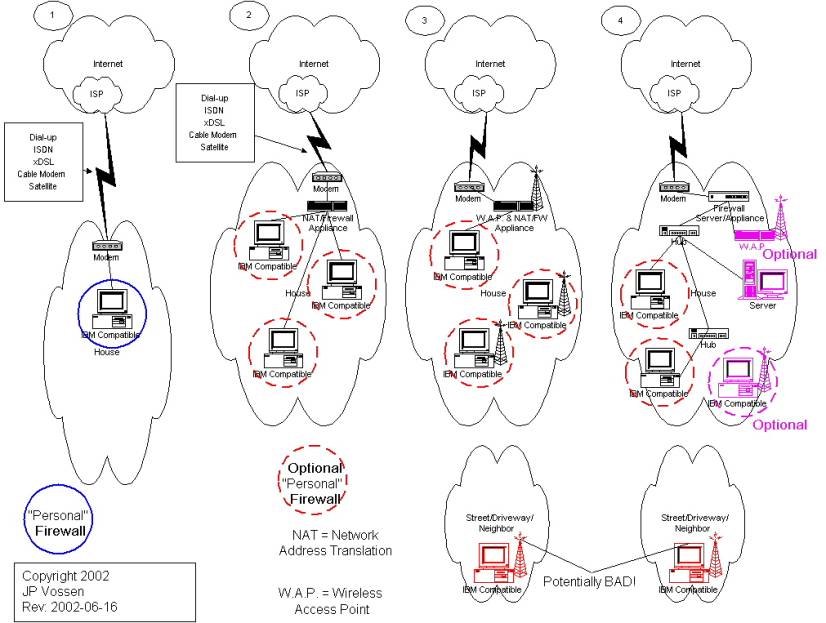
Recently the question about how to design a relatively secure home network has been coming up a lot. So rather than trying to draw the same thing on whatever napkin happens to be handy, I diagrammed the four most common home network designs, and wrote some text that fleshes out the details. See home_networks.html. Zone Labs, now part of Check Point Software has a similar sort of PDF document.

If you do nothing else, at least grab the free versions of Zone Alarm, Ad-aware and Spybot.


Why YOU as a home user need a firewall

Do these sound familiar: “There is nothing on my computer I care about.” “Why would anyone want to hack me?” “I’m using dial-up so I’m safe.” “Who cares?”

I hope not, but if you do not have a firewall and you believe any of the above, you are wrong! Here’s why.

  • It is possibly true that there is nothing worth stealing on your PC. But… Do you use Quicken or MS Money? Turbo Tax? The encryption in those programs is a joke, and if you fill in all the forms them your entire financial status is a wide open book to anyone who wants to look. Is your name, address, phone number, credit card information or Social Security number on your PC? Anywhere? Hum, not so worthless any more, huh?
  • Do you have any kind of perr-to-peer or other file sharing software installed? That would include things like Kazza (AKA KaZaA), Morpheus, or even distributed computing programs like SETI@home? Even if you did not install anything like that, did your kids? If so, your entire hard drive may be open to the Internet. It may not too. The point it, DO YOU KNOW?
  • Why would anyone want to hack you? Good question. No reason–they wouldn’t. It’s purely a numbers game. IP Addresses to be precise. If your IP Address (kind of like your computer’s “phone number”) is in the range that some random attacker is scanning, and you are running a PC that is vulnerable to whatever exploit he’s running, and you are not otherwise protected (like by a firewall), then you are hacked. Period, end of story. And you probably don’t even know it.
  • But so what, right? Wrong. If your machine is hacked in the right (or perhaps wrong) way, the attacker can do anything he wants. Including launch denial of service attacks against the Whitehouse, bounce (redirect) web surfing to terrorist sites though your computer, use your computer hard drive space for storage of illegal software–or worse, use your computer and bandwidth (Internet connection) to send spam, and the list goes on.
  • Don’t believe the problem is that bad? I used to have a page that tracked how often my home internet connection was attacked. I stopped a long time ago because the scanning is relentless.
  • Hackers steal from pirates, to no good end. The people who design rogue programs that take over computers from afar are now applying the tactic that made music pirating programs so effective–and the Internet may never be the same.
  • A third of spam spread by RAT-infested PCs. Nearly one-third of all spam circulating the Web is relayed through PCs that have been compromised by malicious programs known as Remote Access Trojans, according to Sophos, an antispam and antivirus company.

See also my (obsolete) GNATBox Firewall Installation Quick Reference page.


SOHO Firewalls

As an aside here,I personally use GNATBox Lite. My requirements were as follows, and that’s the only thing I could find that meets them all. (See also my GNATBox Firewall Installation Quick Reference page.)

  • Free
  • Run on a 486
  • Run from a single floppy disk – no hard drive needed
  • Simple to manage
  • Remote syslog logging support

I’d considered using OpenBSD with IPFilter as well, but it does not quite meet all of my needs. I am also running a kind of “virtual” VPN [sic] using ssh from OpenSSH. I’m in the process of writing up some documentation about this. I’ll put a pointer here when it’s finished. In the meantime, see O’Reilly’s SSH, The Secure Shell: The Definitive Guide.

Obsolete Content

This content is obsolete, but I am leaving it here as a historical reference.

Typical Home Network Designs

Obsolete Content

This content is obsolete, but I am leaving it here as a historical reference.

The Risks…

Are real.

There is no security through obscurity.  While is it true that it’s very unlikely that someone will specifically try to hack you, that doesn’t matter!  There are a large number of hacking tools that simply scan a range of IP Addresses (similar to telephone numbers) for a vulnerability.  If you happen to have an IP Address in the target range, and if you happen to have that vulnerability–you are hacked–simple as that.  :-(

Here are some statistics from the firewall at my house.  I do not have a web server, or anything “tempting,” these are just the random scans or “doorknob twists” I just described above.  When I wrote this in mid 2002, on an average week, 88 different people tried to attack 41 different services 252 times.  At my house!. It’s worse now.

So who cares if they break into my machine?  Well, here are some things to think about:

  • Do you use Quicken?  One Russian hacking ring targeted Windows machines expressly to steal Quicken files.  Are your Quicken files password protected?  It doesn’t matter–it’s trivial to crack that “protection.”
  • Do you have information from work on a home PC, or is your work laptop connected?  It would be a lot easier to hack your house than to hack you at work.
  • You could become a “zombie,” that is, one of hundreds or thousands of computers used to launch distributed denial of services attacks such as the one that brought down Yahoo and Amazon last year.
  • You could become a bounce point used to conceal an attacker hacking someone else.  Wouldn’t it be interesting to have the Secret Service show up one day because your PC was attacking Whitehouse.gov?

Adding a wireless connection only increases your security risks.  See below for more information.  Wireless can be done securely–or securely enough anyway–but that entails more work.  Security is not “plug and play.”

Having said all that, dial-up connections are somewhat less of a risk, as are some types of cable modem.  The difference is that with a dial-up connection or a cable modem that uses PPPoE (Point-to-Point-Protocol over Ethernet) and/or DHCP (Dynamic Host Configuration Protocol) your IP Address is different each time you connect to the Internet.  Thus, even if you got hacked, the hacker may have more trouble finding you again.  Note that same cable modems that use DHCP still get the same address each time, so this is not a help.  Also, depending on how you were hacked and for what purpose, different IP Addresses may not matter.  For example, some kind of program may b installed to actively tell the hacker what your new address is every time you connect.

The bottom line is that no matter how you connect to the Internet there is a risk, and you should do everything you can to minimize that risk.  If you are just a bit more difficult to get into than the next guy, the hackers will go after him instead of you.  And if the various scanning tools can’t find the vulnerability, they will pass you by.  The Internet is far too valuable not to connect to–just understand the risks and try to mitigate them.

Typical Home Network Designs

See the diagram below.

Note: this architecture is not suitable for hosting services, such as a web site or e-mail server, on your home LAN.  For that you need to implement a DMZ, which is out of the scope of this document.  Hosting services may also be against the terms of service of your contract with your ISP.

Link Speed Cost (estimates) Availability
Dial-up Slow $15-25/mo Almost always
ISDN Medium Expensive, and charged per minutes Usually
xDSL Varies Depends on type of DSL and distance from phone company Central Office (CO)-($40-350/mo) Depends on distance and if the service is available in the area
Cable Modem Varies-Fast $35-60 Depends on cable company
Satellite ??? ??? ???

1. Simple/Home

This is the most common situation.  Whatever link is used is just connected to 1 PC and that’s it.  Unless a “personal” firewall is used, there is very little security, especially on Windows 95/98/ME.  Windows NT, 2000 or XP can be made somewhat more secure, but the default installation is not secure.  In other words, unless you have taken additional (and sometimes complicated) steps to secure it, it’s not secure at all.

2. NAT/Firewall Appliance

There are three types of NAT or Firewall appliances in the SOHO market.  These are listed below in order from least to most secure.  The price tends to follow that from cheapest to most expensive, but there are exceptions.

NAT Device

This is a step better than option 1 and it allows you to connect more than 1 PC to the link.  However, NAT (Network Address Translation) does not provide that much protection.  NAT provides translation between the public, routable IP Address you get from your ISP when you connect to the Internet and a private, non-routable address that you can use on your internal network.  Any PC can make a connection out, and the reply to that request is allowed back in.  This is not nearly as secure as it sounds, but it’s better than nothing.

Firewall

Using a firewall builds on the NAT device.  It will virtually always use NAT as well, but it adds rules that allow you to define what types of traffic are allowed in and out.  A simple packet filter firewall is better than NAT, but it also has some security problems.  To vastly oversimplify the problem, packet filters only look at what the packet of data says it is.  It’s very easy to make a packet lie, and a packet filter will usually not catch it.

Stateful Firewall

A stateful firewall builds on the packet filter and keeps a “state table” of what connections are in progress.  This way, if a packet tries to lie and say that it is part of an established (and thus presumably allowed) connection, but that connection is not listed in the table of allowed connections, it is denied.  This is about as secure as you are going to get in the SOHO environment.

The next level of security involves using application level proxies, which you will not find in typical SOHO devices and which are outside the scope of this paper.

3. Wireless Appliance

Using a wireless appliance is very similar to option 2, except it adds wireless capability.  The same three levels of security from above may usually be found in wireless devices as well.  But wireless adds complexity and vulnerability due to the fact that it is wireless.  Now I can site in the street and use your Internet connection to surf, or to hack someone.  If I live next door to you, and my parents have restricted my Internet connection, I may be able to use yours to get around those restrictions.

4.  Complex/SOHO

This is a complex network, connecting multiple PCs in different areas, and optionally supporting servers, segmented wireless access and more.  Anything this complex is getting out of the scope of this paper.

Terms

DHCP Dynamic Host Configuration Protocol, a protocol used to automatically assign IP Addresses to devices when they ask for one.
Firewall Software or hardware intended to provide a separation between trusted and un-trusted networks. Firewalls often allow you to create rules to define what kinds of traffic are allowed to pass between the different networks.
ISP Internet Service Provider. The service that connects you to the Internet, e.g. AOL, MSN, etc.
NAT Network Address Translation, also called masquerading. The process of segregating any number of illegal, non-routable or private IP addresses behind a single or small number of legal, routable or public IP Addresses.
Personal Firewall A program you install on an individual PC that acts as a firewall. These are often relatively simple and may not allow arbitrary rules to be created.
PPPoE Point-to-Point-Protocol over Ethernet, a method some cable modems use that establish what looks like a dial-up connection over the cable modem. In other words, you “log in” with a user name and password to get the cable modem to work.
SOHO Small Office/Home Office, the environment for which this paper is intended.
Stateful Firewall A firewall that keeps track of existing and allowed connections in a “state table.” More secure than a non-stateful packet filter type firewall.

Resources

See the diagram below and my SOHO Security section.

History

Revision Date Comment
2003-11-09 Converted to HTML and minor revisions
2002-05-26 (and thereabouts) First public release
2002-06-16 Corrected diagram (I left the “modem” off of #2-4)

4 Typical Home Network Diagrams

Home LAN Diagrams
Obsolete Content

This content is obsolete, but I am leaving it here as a historical reference.

Information Security Principles

JP’s Security Principles

I firmly believe in the following Security Principles:

  • 100% security is impossible.
  • 99% security may be possible, but is too expensive in terms of effort, money, time and productivity.
  • The goal is reasonable and adequate security with reasonable and sustainable effort. How you define “reasonable” depends on the value of the information you are protecting. It is not reasonable to spend $10,000 to protect $5,000 worth of information. You need to understand what you are protecting, and the realistic threats you are facing.
  • Security through obscurity is no security at all.
  • The best Security is provided by a defense in depth:
    • Prevention
      • Hardening
      • Least Privilege
      • Separation of duties
      • Strong, published, security policies, with End User awareness
      • Strong change management policies and procedures
    • Protection
      • Firewalls, etc.
      • Anti-Virus & Active Content filtering
      • BCP/DR (Business Continuity Planning/Disaster Recovery)
      • Strong authentication methods (especially for Remote Access)
    • Detection (and Assessment)
      • Monitoring (logs/network/everything), IDS, etc.
      • Security/vulnerability assessments
      • Compliance audits
    • Response (and Correction)
      • CIRT (Computer Incident Response Team)
      • Correct environment based on incidents, assessments, audits and changed circumstances
      • Update policies, procedures and guidelines based on incidents, assessments, audits and changed circumstances
  • Security is a never-ending circular process, there are no silver bullets, and it is fundamentally not a technical problem that may be “solved” with point products.

Some frequently misused or misunderstood terms:

Policy, et al.

  • Policy A high-level statement of enterprise beliefs, goals, and objectives and the general means for their attainment for a specified subject area. They should not be technology specific, and they should change rarely.
  • Standard Mandatory activities, actions, rules and regulations designed to provide policies with the support structure and specific directions they require to be meaningful and effective. They are often expensive to administer and should be used judiciously. Standards may or may not be technology specific and may or may not change frequently.
  • Standard Standards are documented agreements containing technical specifications or other precise criteria to be used consistently as rules, guidelines, or definitions of characteristics, to ensure that materials, products, processes and services are fit for their purpose. (Source: ISO; http://www.iso.ch/iso/en/aboutiso/introduction/index.html)
  • Guideline More general statements designed to achieve the policy’s objectives by providing a framework within which to implement procedures. Where standards are mandatory, guidelines are recommendations. Guidelines may change more often than policy’s, but less often than procedures.
  • Procedure Spell out the specifics of how the policy and the supporting standards and guidelines will actually be implemented in an operating environment. These are often step-by-step instructions, and are usually technology (e.g. OS) specific. They may change often, as new technologies are introduced.

The source of the above definitions, except as noted is, Information Security Policies and Procedures: A Practitioner’s Reference, by Thomas R. Peltier, with additions relating to frequency of changes by me.

Evaluation of your Environment

  • Penetration Test A covert evaluation of or attack on the environment, specifically looking for security vulnerabilities to exploit, and often stopping at the first successful penetration. In my view, penetration tests are not worth the time or money, with very limited exceptions. If the attackers are skilled enough, and take long enough, a P-Test will always succeed. So what does that prove? That you hired someone smart enough to break into your network-or perhaps you failed to hire someone smart enough. Either way, of what value is that? None.
  • Assessment An overt evaluation of the environment to determine “where you are” and “what you have.” In this context, the focus is generally on security, and network architecture, but you can (and in fact should) assess your environment for other reasons and with other focuses. In order to plan for the future, you must know where you are. You can then determine where you need/want to be, and finally plan how to get there.
  • Audit An evaluation to determine if and how well you are in compliance with an existing set of documented policies/procedures/guidelines/standards/best practices.

DMZ

  • DMZ Demilitarized Zone, as in the military usage. This was originally the (sub) network outside your firewall, but inside your ISP router. However, the term has been misunderstood and misapplied to the point where it is now meaningless. Depending on the background of the user, it can mean the network as described above, the network in the middle of a “firewall sandwich,” or the network(s) on a three (or more) legged firewall. Thus, I prefer the term “service network” for the network on which Internet accessible services are hosted (which hopefully is the third leg or between two firewalls). And I prefer the term “moat network” for the network outside the firewall, but inside the ISP router, which in itself may provide a layer of protection via access control lists, etc.

CIA

  • Confidentiality Information is only accessible by those people or processes authorized to use it.
  • Integrity Information is changed only in authorized ways, by people or processes authorized to make the changes.
  • Availability Information is available to those people or processes authorized to use it, when it is needed.

Security Tools

Old Content

This content is old! It’s still useful, but it’s old, and there may be bit rot, newer/better tools or ways to do things. Sanity check and do your research.

Tip

Everything listed on this page is free, unless otherwise noted (or unless I goofed).


Security Tools

General

Disk/File Wiping

Password Databases

You need to use a password database because humans are bad a remembering good passwords, you can’t share passwords among sites, and so you need to have a lot of passwords. Some useful thoughts on this include:

There are a great many password databases out there these days. I personally don’t trust any of the cloud or browser-based ones, because anything automated is that much easier to crack in to. It’s a few extra steps to manually copy & paste the password from the manager into the correct fields, but it’s a lot more secure.

  • Password Safe is a free utility originally from Bruce Schneier and Counterpane Labs which allows you to keep your passwords securely encrypted on your computer. A single Safe Combination–just one thing to remember–unlocks them all. Check Password Safe’s releases to find the newest version.
  • KeePass seems to be another good one, and it has many cross-platform variations to chose from.
  • See my random password/pin generator (written in Perl). It also creates unpronounceable names for aliens, for when you’re writing SciFi and get stuck for a name… ;-)

Sniffers

There’s a more up-to-date list at 2019 Best Packet Sniffers (10 Packet Analyzers Reviewed)@lahmstache UPDATED: June 21, 2019

Scanners/Tools

Port Databases

Network Streams Detection

Secure Shell (ssh)

UNIX Clients and Servers

Windows Clients and Servers

Information/Documentation

Other Lists of Ports

Commercial

Other


Firewalls & Firewall Tools

Check out the OpenBSD FAQ relating to IPFilter for a VERY good and clear example of IPFiltering, which is similar to the Linux IPTables or IPChains, and which is a great example of firewall rules in action! See also:

  • The OpenBSD project produces a FREE, multi-platform 4.4BSD-based UNIX-like operating system. Our efforts emphasize portability, standardization, correctness, proactive security and integrated cryptography. OpenBSD supports binary emulation of most programs from SVR4 (Solaris), FreeBSD, Linux, BSD/OS, SunOS and HP-UX.
  • IPFilter, the IP Filter HOWTO, ipf(8) and ipnat(8)

Check Point Firewall-1

  • I have combined my LogSwap and CPFWBack tools, and added my extract_patch tool into CPFW1TK–the Check Point Firewall-1 Tool Kit. LogSwap and CPFWBack work under both Windows and UNIX. Extract_patch is unnecessary under UNIX.

CPFW1TK-3.2.0-2.exe (288,965 bytes) has the scripts and all other binaries needed to run. It also includes the UNIX scripts just for fun, and it has some other bonus stuff. It is a self-extracting ZIP archive. CPFW1TK-3.2.0-1.tgz (10,251 bytes) just has the UNIX scripts and ReadMe files.

Extract_patch was created for extracting Check Point patches under Windows, without installing WinZip, since Check Point are now distributing all patches in TGZ format. But it will work for any TGZ (or .tar.gz, or .gz or .tar) you wish to extract under Windows, without having to install WinZip. It combines Win32 ports of the GNU tar.exe, gzip.exe and md5sum.exe utilities, so you can unpack and verify *.tgz files.

LogSwap archives or “rolls” Firewall-1 logs. It includes Logswap.cmd, obsolete.com, audit.com and gzip.exe for Win32.

CPFWBack greatly automates the annoying process of backing up Firewall-1 configurations. It includes CPFWBack.cmd, zip.exe, unzip.exe and vdate.exe for Win32 and CPFWBack.sh for UNIX.

  • I’ve also created an add-on called jpcshrc for the default csh configuration in Nokia’s IPSO 3.4.1-FCS5. It sets the csh prompt to your current working directory, and add some aliases (mostly DOS commands, since I can’t remember what OS I’m using).
  • The Check Point User Group including the old Phoneboy site.
  • Essential Check Point FireWall-1, ISBN 0201699508, written by Dameon D. Welch-Abernathy (AKA PhoneBoy), owner/operator of the above FireWall-1 FAQ site. There is also Essential Check Point FireWall-1 NG in the works, probably available in early 2004.
  • Tom Horsley’s NTP Time for Windows is a nice NTP client program. It is free, but is a client only, and can be configured to talk to only one NTP server at a time. NTP works much better when referencing a pool of servers. BUT, it allows you to use NTP to time-sync a hardened NT Firewall server. The NT Resource kit TimeServ will not run with the NT Workstation service disabled or removed (which it should be on a firewall!!!)
  • fwlogsum “is a perl script to summarise FW1 logs making it easier to see what services are being blocked or allowed through your firewall.”

WatchGuard Firebox II with the Live Security Service (LSS)

  • Fix-wls converts those annoying WatchGuard *.WLS files to Self-Extracting archives.

Securing or Hardening Systems

I have much more information on this topic, and will post references as I have time.

NT4

Win 2000

UNIX

Old Content

This content is old! It’s still useful, but it’s old, and there may be bit rot, newer/better tools or ways to do things. Sanity check and do your research.


  1. Winpcap is a libpcap-compatible library for Windows. Libpcap is the basis for most UNIX sniffer and packet tools, such as namp, nc, tcpdump and dsniff. ↩︎ ↩︎ ↩︎ ↩︎ ↩︎